Google Sheets to Retool: Transforming Data Management and Business Efficiency

Duy Vu
February 28, 2025
28 mins read
Google Sheets to Retool: Transforming Data Management and Business Efficiency

Introduction

Why Transition from Google Sheets to Retool?

Google Sheets is a go-to tool for many businesses due to its accessibility and ease of use. However, as operations expand, relying solely on Google Sheets can create workflow bottlenecks, data inconsistencies, and security concerns. Migrating from Google Sheets to Retool allows companies to move from manual, time-consuming processes to automated, scalable solutions that ensure real-time data access and operational efficiency.

Challenges Businesses Face with Google Sheets

  1. Data Management Limitations – Managing large datasets in spreadsheets can lead to slow load times, disorganized records, and data inconsistencies.
  2. Lack of Automation – Manual data entry increases the risk of human error and requires constant oversight.
  3. Collaboration Challenges – Sharing spreadsheets with multiple users often leads to duplicate data, overwritten changes, and confusion over the most up-to-date version.
  4. Security Concerns – Google Sheets lacks robust role-based access control, making sensitive data more vulnerable to unauthorized edits or breaches.
  5. Scalability Issues – As business operations grow, spreadsheets become less effective for tracking financials, inventory, customer data, and workflow automation.
__wf_reserved_inherit
Why transition from Google Sheets to Retool

How Retool Enhances Business Operations

Migrating from Google Sheets to Retool helps businesses optimize processes by integrating real-time data access, workflow automation, and customizable dashboards tailored to unique business needs.

__wf_reserved_inherit
Improve Data Accuracy & Real-Time Insights

1. Automate Workflows & Reduce Manual Effort

With Retool, you can connect Google Sheets, CRMs, databases, and APIs into a single dashboard. This eliminates the need for manual data entry and allows for instant updates and data synchronization across all platforms.

2. Improve Data Accuracy & Real-Time Insights

Retool ensures that your data remains accurate, up-to-date, and consistent across teams. Whether you're tracking financial reports, sales performance, or operational metrics, Retool's dashboards provide real-time insights to support data-driven decision-making.

3. Enhance Collaboration & Role-Based Access Control

Retool allows businesses to create custom access permissions, ensuring that employees only see and modify the data relevant to their role. This eliminates accidental data deletions or unauthorized changes, improving overall data integrity.

Example Use Case: Financial Data Automation

Consider a finance department that relies on Google Sheets for monthly revenue tracking. The team manually imports sales data, reconciles transactions, and generates reports. This process is slow, prone to errors, and requires constant human intervention.

With Retool, the workflow transforms:

  • Sales data from Google Sheets syncs in real-time with financial databases.
  • Automated reconciliation flags discrepancies without manual review.
  • Pre-configured dashboards display revenue trends, expenses, and forecasts instantly.
  • Reports are generated automatically and shared securely with leadership teams.

A Smarter Migration Strategy: Start with One Sheet

Most teams do not need to turn every spreadsheet into Retool on day one. In fact, that is one of the easiest ways to make the migration feel too big, too slow, and too risky. The better approach is to start with one sheet that already causes visible pain.

Look for a spreadsheet where people regularly make mistakes, wait for someone else to update a column, copy data between tabs, or rely on one person who understands all the formulas. That is usually the best first Retool candidate.

The goal is not to recreate the spreadsheet exactly. The goal is to keep the parts users already understand while replacing the fragile parts with a safer interface and stronger logic.
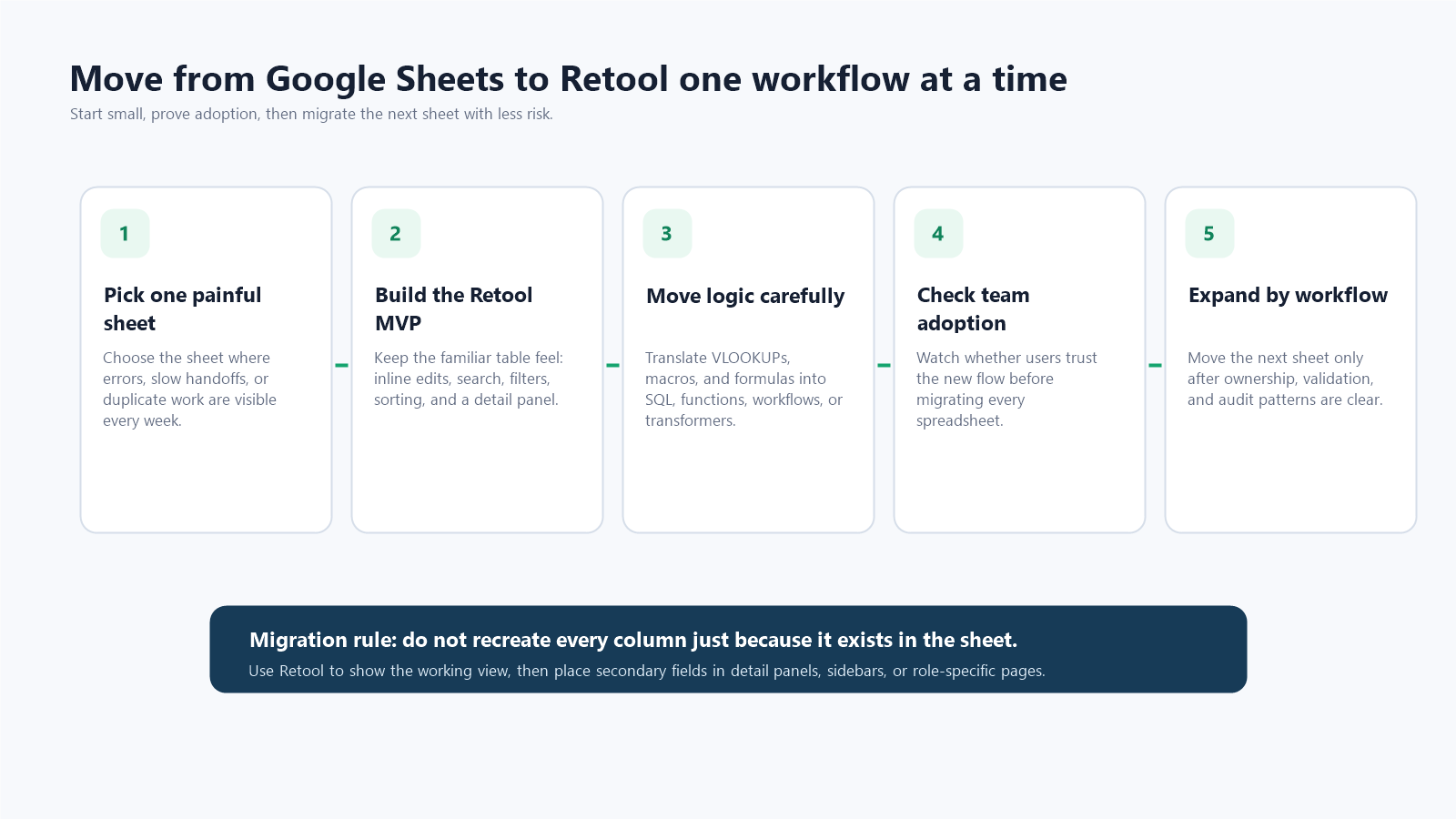
Five-step migration path from one painful Google Sheet to a Retool MVP, adoption check, and next workflow.
Start with one painful spreadsheet, prove adoption, then migrate the next workflow with less risk.

A practical migration path looks like this:

  • Pick one high-friction sheet. Choose a workflow where errors, duplicate updates, or slow handoffs are easy to measure.
  • Build a Retool MVP around the working view. Keep the first version focused on the table, key actions, and the most common edits.
  • Move formulas and dependencies carefully. VLOOKUPs, macros, cross-sheet formulas, and manual calculations should become SQL logic, backend functions, Retool Workflows, or transformers.
  • Check adoption before expanding. If the team does not trust the first Retool workflow, migrating five more sheets will not fix the problem.
  • Then migrate the next sheet. Once ownership, validations, audit history, and permissions are clear, the next sheet becomes much easier.

This approach also helps teams avoid overbuilding. A spreadsheet may have 80 columns, but users may only need 12 columns for the daily workflow. Retool gives you the chance to show the working view first, then place secondary fields in a detail panel, sidebar, modal, or role-specific page.

Keep the Spreadsheet UX Users Actually Need

When users move from Google Sheets to Retool, the interface should not feel like a punishment. Many people like Sheets because they can scan rows quickly, edit cells directly, sort data, and search without asking a developer for help. A strong Retool migration preserves those habits while adding structure around them.

For data-heavy operational teams, the Retool table should usually include:

  • Inline editing so users can still update values cell by cell where that makes sense.
  • Top-level search for fast lookup across names, IDs, order numbers, SKUs, properties, or customers.
  • Filters above the table for status, owner, date range, category, region, or priority.
  • Sorting that can be passed into SQL queries instead of only sorting an already-loaded dataset in the browser.
  • Pagination so the app does not pull every row from the database at once.
  • Column visibility controls so each user or role can focus on the fields they actually need.
  • A detail sidebar for secondary fields that would make the table too wide if shown as columns.

Row density matters too. If the team works with thousands of records every day, smaller row heights help people scan faster. If the team handles fewer records but needs to read notes, descriptions, or customer context, larger rows may be better. The right density depends on the job, not the default component setting.

Translate Spreadsheet Logic into Retool Logic

The hardest part of a Google Sheets migration is rarely the UI. The hard part is translating the hidden logic that has grown inside the sheet over time.

In Google Sheets, business logic often lives in places like:

  • VLOOKUP or XLOOKUP formulas that connect one tab to another.
  • Macros that update rows or generate reports.
  • Conditional formatting that silently tells users what needs attention.
  • Dependent dropdowns where one cell controls the options in another cell.
  • Manual formulas that calculate totals, commissions, inventory status, or approval states.

In Retool, those patterns should become more explicit. Lookup logic can move into SQL joins, subqueries, reusable functions, or backend views. Heavy multi-step processes can move into Retool Workflows. UI-specific transformations can live in transformers, but they should not become a messy replacement for every spreadsheet formula.

A good rule is: if the calculation affects the business record, keep it close to the database or backend. If the calculation only helps the user view or edit the screen, it can usually live in Retool.

Handling Cell-Level Validation

Real spreadsheet workflows often have validation that depends on another cell, another row, or another table. For example:

  • A property status controls which next actions are available.
  • A product category controls which fulfillment fields are required.
  • An order quantity changes whether a warning should appear.
  • A customer type controls which pricing options can be selected.
  • A row cannot be saved unless another related record exists.

Retool can support this, but it needs to be designed intentionally. The table edit state, selected row state, transformers, query results, and save handlers need to work together. This is especially important in real estate, e-commerce, finance, and operations workflows where one wrong edit can affect downstream reporting.

The migration is successful when users still feel like they are editing a familiar table, but the system prevents invalid combinations before they become messy data.

Add Rollups, Audit History, and Safer Row Updates

One advantage of moving from Google Sheets to Retool is that the interface can start behaving more like a real business system. You are no longer limited to flat spreadsheet rows.

For example, Retool can show rollups from related tables:

  • An order row can show the number of linked shipments.
  • A property row can show total active tenants or open maintenance requests.
  • A customer row can show lifetime revenue, unpaid invoices, or support ticket count.
  • An inventory row can show quantity reserved, quantity available, and quantity already committed to orders.

These rollups can come from SQL queries, database views, or backend functions. They give users the summary context they used to build manually with formulas, pivot tables, or copied tabs.

Make Changes Audit-Friendly

Audit history is another major upgrade. Google Sheets has version history, but it is not always easy to turn that into a clean operational audit trail. In a Retool and Supabase setup, row-level changes can be logged at the database level and surfaced in the UI when users need them.

For example, a detail sidebar can show a simple edit history:

  • Who changed the row.
  • Which field changed.
  • The old value and new value.
  • When the change happened.
  • Which workflow or screen triggered the change.

This makes the system easier to trust. Users can edit quickly, but managers and operators can still see what happened when something looks wrong.

Do Not Refresh the Whole Table After One Cell Edit

A common Retool mistake is refreshing the entire table after a single cell is edited. It works, but it creates a worse experience as the dataset grows. The table flickers, the user loses context, and the app repeats work it does not need to do.

The better pattern is to update the record, fetch the changed row, and replace only that row in the table data. In practical terms, this means updating one object inside the array rather than reloading every object in the table.
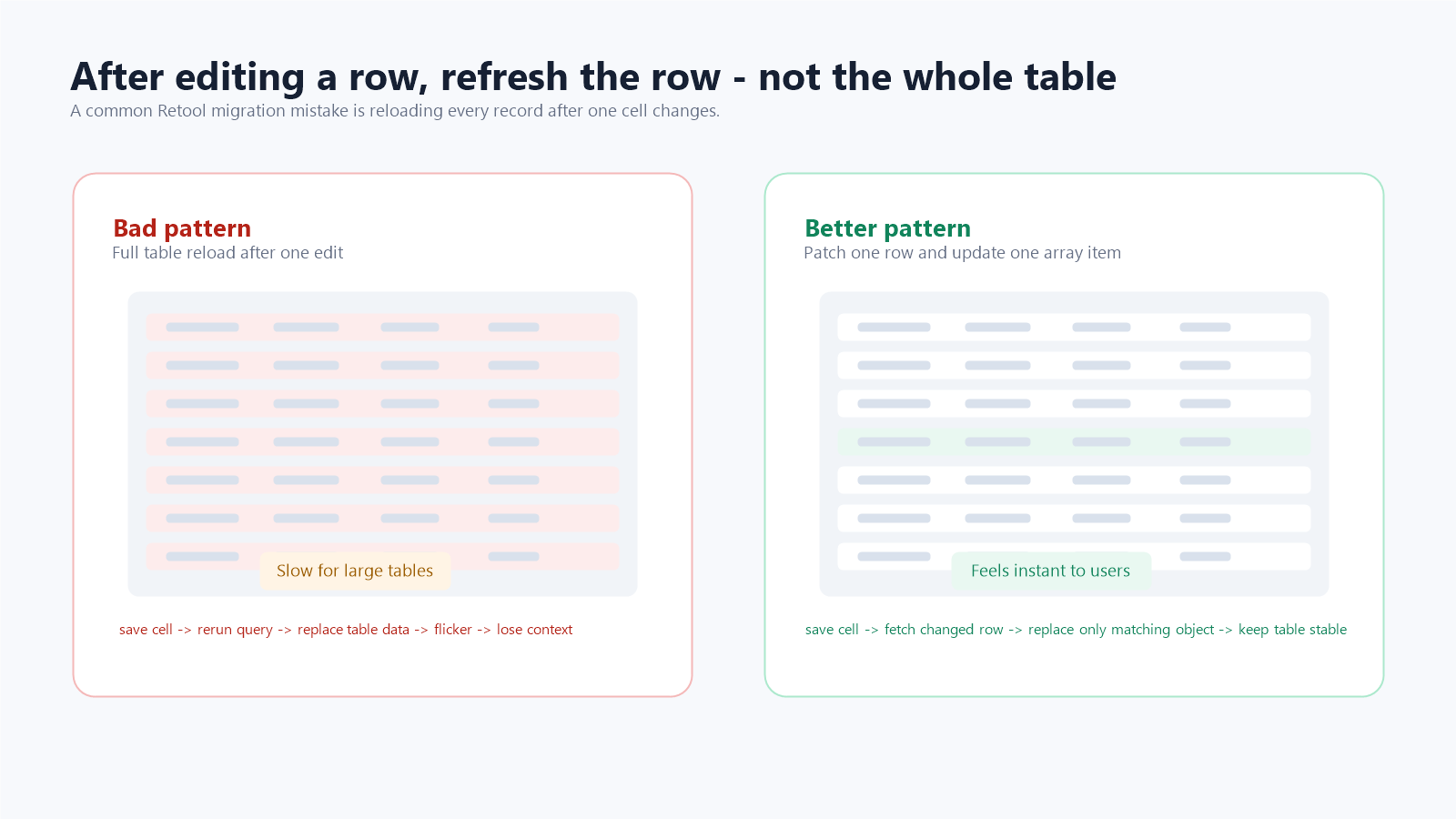
Comparison showing the bad pattern of full table reloads versus updating only the edited row in Retool.
After editing one row, patch and refresh that row instead of reloading the full table.

This small implementation detail has a large UX impact. Users keep their place in the table, the interface feels faster, and the app avoids unnecessary load on the database and browser.

Technical Guide: Integrating Google Sheets with Retool

For developers or technical teams, here’s how you can integrate Google Sheets with Retool to automate your data management process.

__wf_reserved_inherit
Automate Workflows & Reduce Manual Effort

Step 1: Establish a Connection to Google Sheets

  1. Open Retool and navigate to Resources → Create a New Resource.
  2. Select Google Sheets API as your data source.
  3. Authenticate using your Google account and grant necessary permissions.
  4. Choose the relevant spreadsheet and sheet tab to connect.

Step 2: Display Data in a Retool Dashboard

  1. Use Retool’s Table component to display Google Sheets data dynamically.
  2. Add a refresh button to pull in the latest updates instantly.
  3. Implement filters and sorting for better user experience and data analysis.

Step 3: Automate Data Modifications & Syncing

  1. Configure CRUD (Create, Read, Update, Delete) operations within Retool to update Google Sheets directly.
  2. Use Retool’s Query Editor to modify spreadsheet data and sync with other business systems.
  3. Implement event triggers to notify teams of data changes, eliminating the need for manual tracking.

Best Practices for Transitioning from Google Sheets to Retool

  • Identify Key Workflows – Determine the most time-consuming processes in Google Sheets and prioritize their automation in Retool.
  • Map Data Relationships – Structure your data in Retool so that it integrates seamlessly with other tools and databases.
  • Train Your Team – Ensure that all users understand how to interact with Retool’s dashboards and automation tools.
  • Monitor & Optimize – Continuously track performance and refine workflows to maximize efficiency.
  • Preserve familiar table habits. Keep inline editing, filtering, sorting, and search where users rely on them daily.
  • Move formulas into maintainable logic. Translate VLOOKUPs, macros, and cross-sheet calculations into SQL, functions, workflows, or clear transformer logic.
  • Use pagination by default. Retool should not load every row just because Google Sheets used to show everything in one place.
  • Audit important edits. Log row-level changes in the database and expose a simple edit history when the business process needs accountability.
  • Refresh only what changed. After a cell edit, update the edited row instead of rerunning the full table query whenever possible.

Visual Elements for the Blog

  • Image 1: Side-by-side comparison of a manual Google Sheets workflow vs. an automated Retool workflow.
  • Image 2: Screenshot of Retool UI with an active Google Sheets integration.
  • Image 3: Business dashboard showcasing real-time financial data updates.
  • Image 4: Workflow diagram illustrating automated data synchronization.

Conclusion: Why Retool is the Best Alternative to Google Sheets

For businesses seeking to eliminate manual processes, enhance collaboration, and scale operations efficiently, transitioning from Google Sheets to Retool is a game-changer. With Retool’s custom dashboards, automation features, and secure data management, teams can work smarter, not harder.

💡 Want to optimize your workflows? Start leveraging the power of Retool today and transform the way your business handles data.

Ready to take your VC operations to the next level?

Start building with Retool today and see the difference it can make.

At Retoolers, we specialize in helping businesses like yours create powerful internal tools using Retool. Whether you need a custom dashboard, an admin panel, or a complete workflow automation solution, we've got the expertise to bring your ideas to life.

Get in touch with us today to see how we can help you optimize your operations with Retool. Contact Retoolers and let’s get started!

Looking to supercharge your operations? We’re masters in Retool and experts at building internal tools, dashboards, admin panels, and portals that scale with your business. Let’s turn your ideas into powerful tools that drive real impact.

Curious how we’ve done it for others? Explore our Use Cases to see real-world examples, or check out Our Work to discover how we’ve helped teams like yours streamline operations and unlock growth.

Duy Vu
Internal Tool Designer

Explore our lastest article

Visit our blog to learn more about our innovative approaches to solving complex challenges.

How to Connect Retool with Notion for Instant Internal Dashboards

Learn how to integrate Retool with Notion to create secure, real-time dashboards for your business teams. No complex code required.

How to give Google Sheets a life with Retool

Learn how to integrate Google Sheets with Retool to create dynamic dashboards, automate workflows, and transform data management with ease.

Request a Quote,
Get a Free Wireframe

Before we quote, we help you clarify the workflow. Share your idea, process, or existing tools, and we’ll map the key requirements, suggest the right system, and create a free wireframe so you can see the solution before development starts.

Get a Free Wireframe
Developer Avatar
Concerned about the price or unsure how we can help? Let’s Build Your Internal System!
Retool Agency Partner
Let's solve it together!
Free
Quote
Book a Call
Book a Call
Get a Quote
Get a Quote
Get a Quote
Get a Quote